
A Tour of the EmDash Dashboard: Every Menu Explained
What every item in the EmDash admin menu does, from Posts and Media to Redirects, Bylines and Import, with screenshots from EmDash 1.4.
 By the AstroBeginner team, reviewed by Seahawk MediaPublished 7 minute readComplete beginner
Tested on Astro 7.4
In this guide
If you’ve used WordPress, the EmDash dashboard will feel familiar within a minute. If you haven’t, this tour explains every item in the menu. We took these screenshots on EmDash 1.4 on November 8, 2026, using the blog template with its sample content.
The dashboard home
Go to /_emdash/admin on your site. You land here:
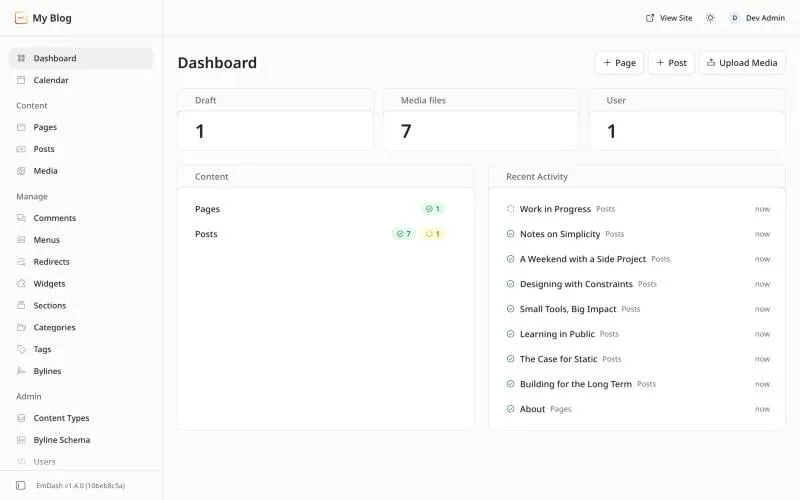
At a glance it shows how many drafts you have, how many images, and how many users. Recent Activity lists what changed last. The three buttons at the top, Page, Post and Upload Media, are shortcuts for the things you’ll do most.
The menu, item by item
The menu down the left side is grouped into three parts.
Content: the things you write
| Menu item | What it’s for |
|---|---|
| Dashboard | The home screen above. |
| Calendar | A calendar view of your content. |
| Pages | Pages that don’t change much, like About or Contact. |
| Posts | Your blog posts or articles. How to write one. |
| Media | Every image and file you’ve uploaded. |
Manage: how your site is put together
| Menu item | What it’s for |
|---|---|
| Comments | Read, approve and delete comments from visitors. |
| Menus | The links in your site’s header and footer. Change them here, not in code. |
| Redirects | Send an old address to a new one, so old links keep working. In WordPress this is usually a plugin. |
| Widgets | Small boxes in the sidebar, like search or a list of categories. |
| Sections | Ready-made chunks, like a call to action or a standard notice, that you can drop into any post or page. |
| Categories | The big groups your posts belong to. |
| Tags | Smaller labels for posts. A post has one or two categories and any number of tags. |
| Bylines | The author names shown on posts. A byline doesn’t have to be a person with an account. |
Admin: the settings behind it all
| Menu item | What it’s for |
|---|---|
| Content Types | The kinds of content your site has, like Posts and Pages, and the fields each one has. Add a new type, like Recipes or Events, here. |
| Byline Schema | Extra fields for bylines, the author details shown on posts. |
| Users | Invite people to help, and choose what each one can do. |
| Plugins | Add-ons. A new site has none. Plugins explained. |
| Import | Bring posts and pages across from WordPress. |
| Settings | Your site’s title, tagline, logo, SEO defaults and more. |
Importing from WordPress
The Import item opens a three-step wizard: connect, review, import.
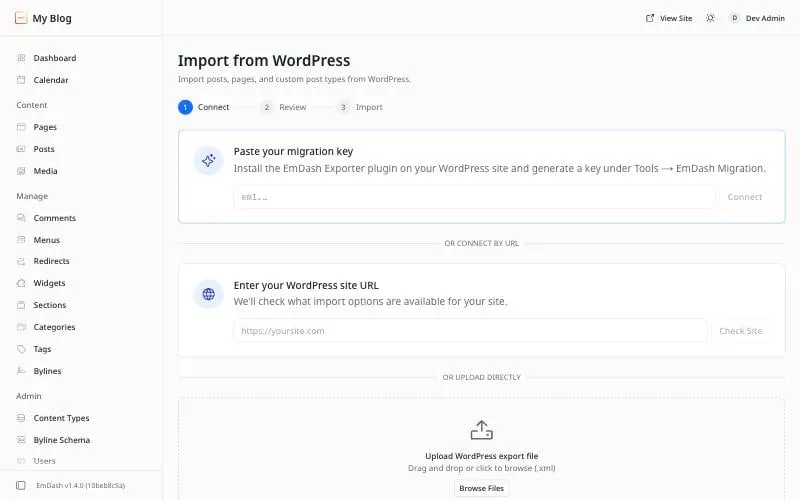
There are three ways in: install the EmDash Exporter plugin on WordPress and paste the key it makes, type your WordPress address, or upload the export file WordPress gives you under Tools, Export. We opened this screen but haven’t run a full import yet. Our WordPress move guide covers the steps.
On your live site
When you’re signed in and visit your site, a small dark bar sits at the bottom of the page with an Edit mode switch. Only signed-in users see it. Visitors never do.
The top bar of the dashboard has three useful things too: View Site opens your site, the sun icon switches the dashboard between light and dark, and your name opens your account.
Where to go next
- Write your first post, step by step.
- EmDash plugins explained, and why you need fewer than in WordPress.
- EmDash vs WordPress, the full comparison.
Frequently asked questions
Where is the EmDash dashboard?
Add /_emdash/admin to the end of your site's address. On your own computer, that's localhost:4321/_emdash/admin.
Is EmDash's dashboard like WordPress?
Very. It has Posts, Pages, Media, Menus, Widgets, Comments, Categories, Tags, Users and Plugins, in a menu down the left side. If you've used WordPress, you'll find your way around in minutes.
Who can see the dashboard?
Only people with an account on your site. You sign in with a passkey, which is your fingerprint, face or device PIN.
Stuck on a step?
Check the common errors guide, look up a word in the glossary, or ask the friendly people in the official Astro and EmDash Discords. How to ask so people can help.