
What Is Starlight? Astro's Documentation Theme, Explained
Starlight is the Astro team's free theme for documentation sites. Here's what you get, how to start one in five minutes, and how to add your first page, with screenshots.
 By the AstroBeginner team, reviewed by Seahawk MediaPublished 8 minute readComplete beginner
Tested on Astro 7.4
In this guide
Starlight is a free theme from the Astro team for documentation sites. Help pages, guides, manuals, a handbook, anything people look things up in. You write pages in Markdown. Starlight gives them a sidebar, a search box, a table of contents, light and dark mode, and built-in support for sites in more than one language, including right-to-left ones like Arabic.
It’s one of the most-used Astro add-ons there is, at about 7 million downloads a week. And you don’t need to know much Astro to use it.
What you get
We made a Starlight site from scratch on November 8, 2026, using Starlight 0.42 on Astro 7.4.7. Here’s what it gave us with no setup.
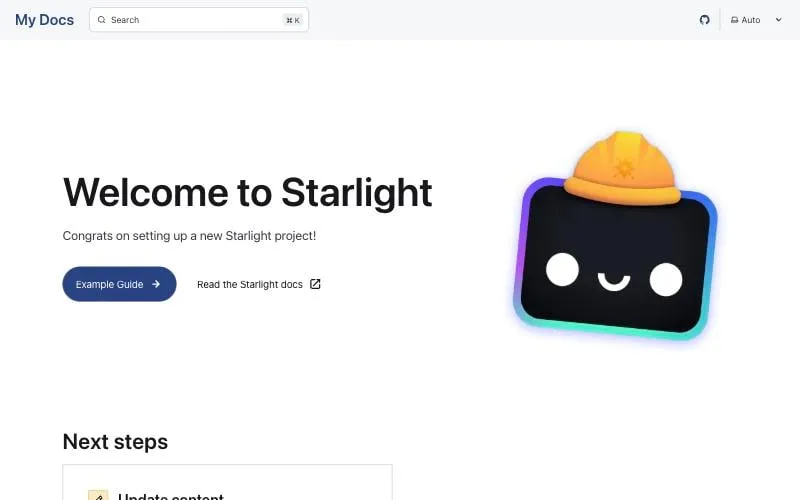
That’s the home page it starts with. Then we added one page of our own, a “Getting started” guide, and listed it in the sidebar:
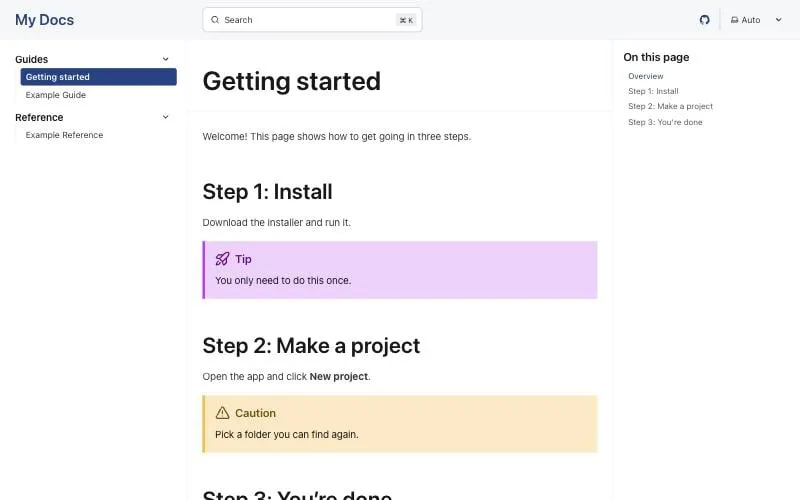
Without writing any code, that page has:
- A sidebar on the left, with the current page highlighted.
- A table of contents on the right, built from your headings.
- Tip and caution boxes, from three colons and a word in your Markdown.
- A search box at the top. Starlight builds the search index with Pagefind every time you build. On our test site it indexed all five pages in under a second.
- Light and dark mode, with a switch in the top corner. It starts on “Auto” and follows the reader’s device.
- A “next page” link at the bottom of each page, so readers can go through your docs in order.
How to start a Starlight site
You need Node.js and a terminal. If you don’t have those yet, do lesson 1 first.
Step 1: Make the project
npm create astro@latest -- --template starlightThe helper asks for a folder name and whether to install. Say yes. It also adds an AGENTS.md file, so AI tools understand your project.
Step 2: Start it
cd your-folder-name
npm run dev
Open the address it shows, usually localhost:4321. You’ll see the home page above.
Step 3: Find your pages
Your pages live in src/content/docs/. The starter has three:
| File | Becomes |
|---|---|
src/content/docs/index.mdx |
The home page |
src/content/docs/guides/example.md |
/guides/example/ |
src/content/docs/reference/example.md |
/reference/example/ |
Every page starts with a title and a description between two --- lines. That’s all Starlight needs.
How to add a page
Step 1: Make the file
Create src/content/docs/guides/getting-started.md:
---
title: Getting started
description: Install the app and make your first project.
---

Welcome! This page shows how to get going in three steps.

## Step 1: Install

Download the installer and run it.

:::tip
You only need to do this once.
:::

## Step 2: Make a project

Open the app and click **New project**.

:::caution
Pick a folder you can find again.
:::
The :::tip and :::caution lines make the coloured boxes. There’s also :::note and :::danger.
Step 2: Add it to the sidebar
Open astro.config.mjs. Find the sidebar list and add a line for your page:
sidebar: [
  {
    label: 'Guides',
    items: [
      { label: 'Getting started', slug: 'guides/getting-started' },
      { label: 'Example Guide', slug: 'guides/example' },
    ],
  },
],
The slug is the file’s path inside src/content/docs, without .md.
Save. Your page appears in the sidebar, with its table of contents on the right.
How to change the colours
Make src/styles/custom.css:
:root {
  --sl-color-accent-low: #e5edff;
  --sl-color-accent: #284282;
  --sl-color-accent-high: #17274d;
}
Then tell Starlight about it, inside starlight({ ... }) in astro.config.mjs:
customCss: ['./src/styles/custom.css'],That’s how the button in our screenshot became navy. Starlight’s docs list every colour you can change.
How to put it online
Run npm run build. Starlight builds your pages and the search index into dist/. Then publish that folder like any Astro site. Free options are in lesson 7, or our Cloudflare and GitHub Pages guides.
When to use Starlight, and when not to
| Use Starlight for | Use something else for |
|---|---|
| Product docs and help centres | A blog, try AstroPaper |
| Open-source project docs | A business homepage, try AstroWind |
| Course notes, handbooks, wikis | A shop or portfolio |
| Anything with a sidebar of pages | A single landing page |
Where to go next
- Starlight’s own docs, which are, of course, built with Starlight.
- Best free Astro themes if you’re building something other than docs.
- Best Astro integrations to add more to your Starlight site.
Frequently asked questions
Is Starlight only for Astro's own docs?
No. It's for any documentation, about anything. Products, open-source projects, company handbooks, courses. Cloudflare, Biome and many others use it.
Do I need to know Astro to use Starlight?
Very little. You write pages in Markdown and list them in one config file. You can learn the rest of Astro later, if you ever need it.
Is it free?
Yes. It's open source under the MIT license, made by the Astro team. Host it free on Cloudflare, Netlify or GitHub Pages.
Can I use Starlight for a blog?
It's built for docs, so a blog isn't its strength. There's a community plugin for adding a blog to a Starlight site. If the blog is the main thing, use a blog theme instead.
Stuck on a step?
Check the common errors guide, look up a word in the glossary, or ask the friendly people in the official Astro and EmDash Discords. How to ask so people can help.